To verify your Google Business Profile: 1) sign in at business.google.com, 2) find or add your business, 3) click "Get verified," 4) finish the method Google gives you (video, phone or text, email, live video call, or postcard), 5) wait up to 5 business days for review. Google picks the method. You can't change it.
How Google Business Profile verification works
- What it is: Google checks that you really run the business. Then you own the profile and can edit it and reply to reviews.
- It's free. Google doesn't charge to verify.
- Google picks the method. It depends on your business type, your public info, your region and your hours. You can't switch to a different one.
- You may need more than one. Some businesses have to pass two methods.
- Video is Google's pick when you can use it. If video is one of your options, Google recommends it.
How to check if your profile is verified
- Sign in to the Google account that manages your profile.
- Search "my business" on Google, or go to business.google.com.
- See a "Get verified" button? You're not verified yet.
- See "Review issues"? Your video was not accepted. Jump to rejection fixes.
- No button, and you can edit everything? You're verified. Google also sends a confirmation email.
Step by step: verify your Google Business Profile
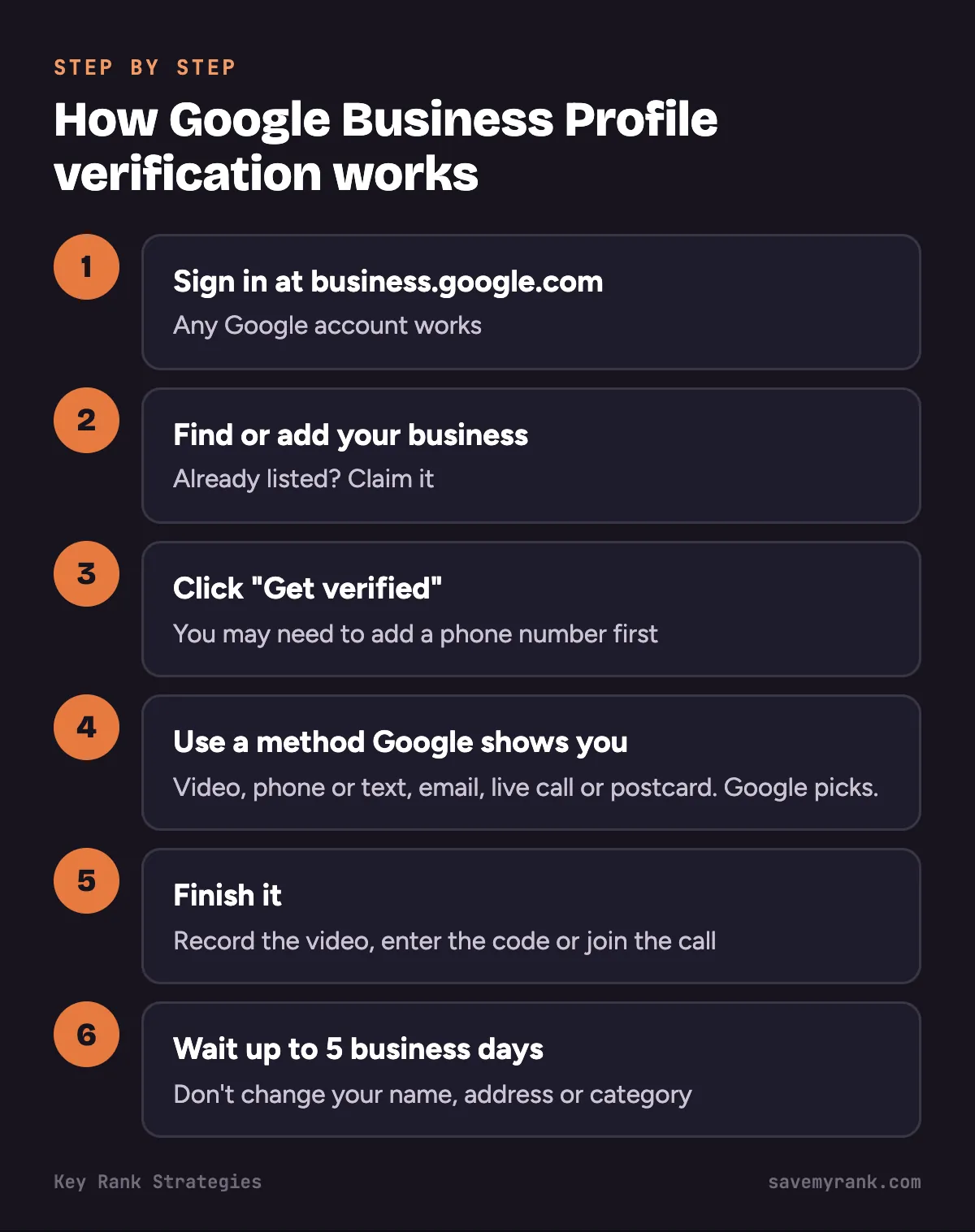
- Sign in to a Google account at business.google.com. Any email address works.
- Find your business. Search your business name and city. Not there? Add it. Already there? Claim it.
- Click "Get verified." You may need to enter a phone number first.
- Pick from the methods Google shows you. Only the ones on your screen are open to you.
- Finish the method. Record the video, enter the code, or join the call.
- Wait for review. Google says up to 5 business days. Sometimes it takes longer.
Don't change your business name, address or category while you wait. That can break the process.
Every verification method, explained
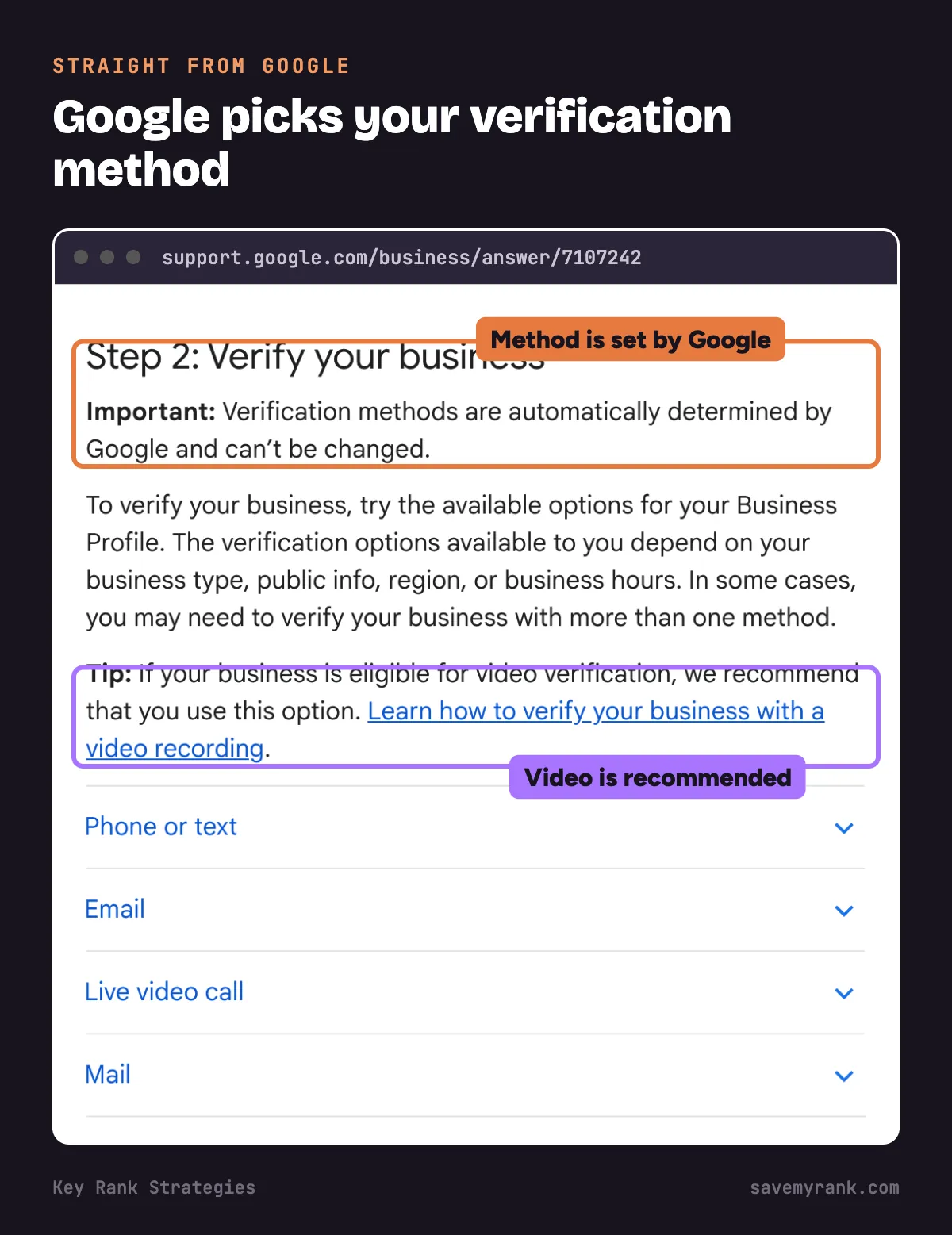
| Method | How it works | Watch out for |
|---|---|---|
| Video recording | You film a live video on your phone in the Business Profile app or site | At least 30 seconds, one take, no edits |
| Phone or text | Google calls or texts a code to your business number | A phone menu ("press 1 for...") won't get the code |
| Google emails steps to an address on the screen | You must be able to open that inbox | |
| Live video call | You show your business to a Google rep on a video call | Only during your business hours; not offered to everyone |
| Postcard | Google mails a 5-digit code to your address | Most arrive within 14 days; codes expire after 30 days |
| Bulk | For chains that manage 10 or more locations | Not for single-location businesses |
Video recording
- You record it live through your Business Profile on your phone. Google doesn't allow a video you made earlier.
- It must be one take, with no breaks and no edits.
- It must be at least 30 seconds long.
- Don't show other people's faces, bank or tax numbers, or ID numbers.
- What to film is below: storefront or no storefront.
Phone or text
- Someone has to answer the business line, or the number has to get texts.
- If a phone menu answers your calls, turn it off for the call or pick text.
- Enter the code in your profile.
- Only works if you can open the email address Google shows.
- Follow the steps in the email.
Live video call
- Only offered during your listed business hours.
- Be at your business. Have your keys, your signs and your tools or van ready to show.
Postcard
- Check your mailing address before you request it.
- Most codes arrive within 14 days. Codes expire after 30 days.
- Don't edit your name, address or category while you wait. The code will stop working.
- Don't ask for a new code. That cancels the one in the mail.
- Google will never ask you for the code. Don't give it to anyone.
Bulk verification
- For businesses that manage 10 or more locations of the same brand.
- Some businesses get verified right away this way. A website verified in Google Search Console can also lead to instant verification.
Video verification: what to film if you have a storefront
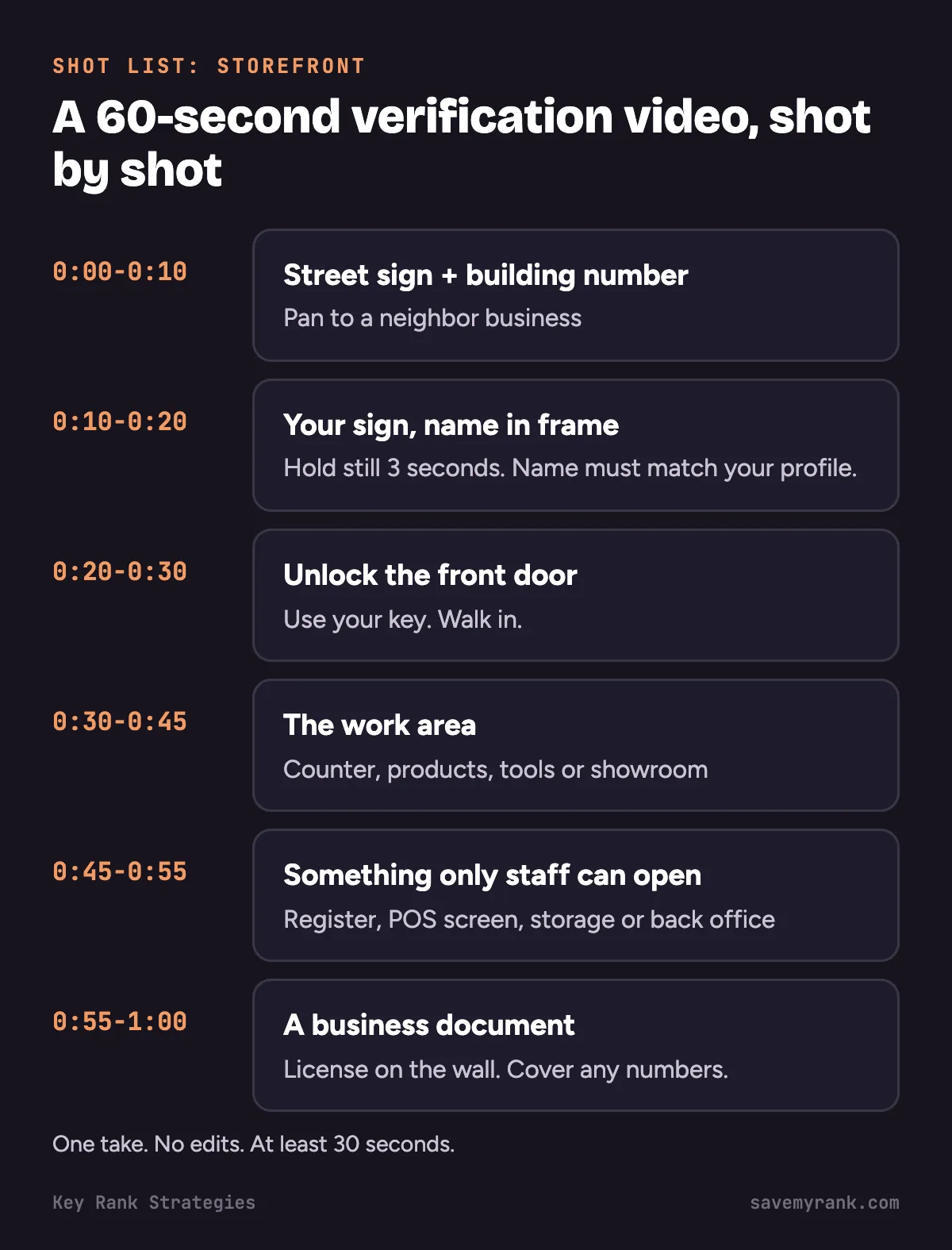
Google wants to see 3 things: where you are, that the business is real, and that you run it. Plan the route before you hit record. Aim for 45 to 60 seconds.
Google posted its own storefront verification sample video. Watch it once, then follow the shot list below.
Shot list: storefront
- 0:00 to 0:10. Stand outside. Film the nearest street sign. Pan to your building number and a neighbor business.
- 0:10 to 0:20. Walk to your door. Film your sign with the full business name in frame. Hold it still for 3 seconds. The name must match your profile.
- 0:20 to 0:30. Unlock the front door with your key. Walk in.
- 0:30 to 0:45. Show the work area: counter, products, tools or showroom.
- 0:45 to 0:55. Open something only staff can open: the cash register, the point-of-sale screen, the storage room or the back office.
- 0:55 to 1:00. Show a business document with your business name, like a license on the wall. Keep any numbers covered. Stop recording and upload.
Video verification for service-area businesses (no storefront)
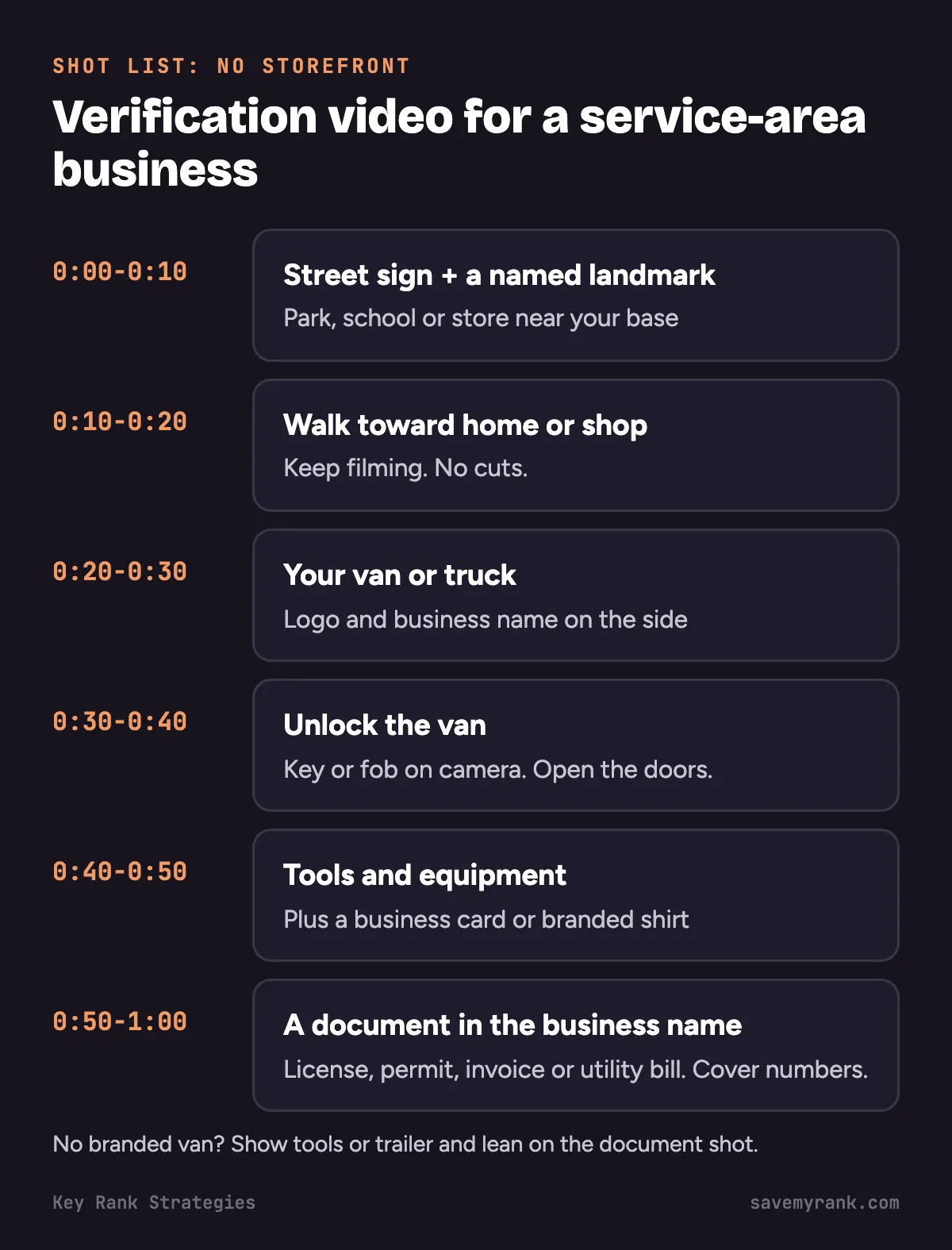
This is for plumbers, roofers, HVAC techs, cleaners, landscapers and anyone who goes to the customer. Google has its own rules for you.
- Where you work from: film street signs or landmarks at your business address.
- Work from home? Google says you can film landmarks and signs in your neighborhood.
- The business is real: show your tools, equipment, business cards or branded shirts.
- You run it: unlock your branded van, or show a business permit, invoice or utility bill with the same name as your profile.
- Profile setup: if customers don't come to you, Google says don't show your address on your profile. Set a service area instead.
Google posted its own service-area verification sample video. Watch it once, then follow the shot list below.
Shot list: service-area business
- 0:00 to 0:10. Start at the corner of your street. Film the street sign. Pan to a named landmark nearby, like a park sign, a school sign or a store.
- 0:10 to 0:20. Walk toward your home or shop. Keep filming the street as you go. No cuts.
- 0:20 to 0:30. Walk up to your work van or truck. Film the logo and business name on the side.
- 0:30 to 0:40. Unlock the van with your key or fob. Open the doors.
- 0:40 to 0:50. Show your tools and equipment inside. Show a business card or your branded shirt.
- 0:50 to 1:00. Show a document with your business name: contractor license, city permit, invoice or utility bill. Cover account numbers and license numbers if you can. Stop recording and upload.
No branded van? Show your tools, your work trailer or your gear, and lean on the document shot.
Before you hit record: checklist
- The name on your sign, van or documents matches your profile name exactly.
- It's daylight.
- Your phone is charged and has a good signal for the upload.
- Your keys or fob are in your hand.
- Your permit, invoice or utility bill is ready.
- No customers or neighbors in the shot.
- Bank, tax and ID numbers covered.
- You walked the route once without filming.
- You'll film at least 30 seconds.
- One take. Upload right away.
Why your verification was rejected, and how to fix each reason
If your video isn't accepted, your profile shows "Review issues." Tap it to see why. Google's examples are in the first 3 rows.
| Reason | What to film next time |
|---|---|
| Business name not visible on storefront | Hold on your sign for 3 seconds. The name must match your profile. |
| No nearby area shown | Start with a street sign and a landmark before you walk to the business. |
| Missing proof of authorization to operate the business | Unlock the door or van on camera. Show a permit, invoice or utility bill in the business name. |
| Video was cut or edited | Record live in one take through your profile. No editing apps. |
| Shorter than 30 seconds | Slow down. Aim for 45 to 60 seconds. |
| Other people's faces in the shot | Film when no customers or coworkers are around. |
When you re-record, Google says to include everything from your first video plus whatever was missing.
How long does Google Business Profile verification take?
| Step | Time |
|---|---|
| Review after any method | Up to 5 business days (sometimes longer) |
| Video review | Up to 5 business days |
| Postcard in the mail | Most arrive within 14 days |
| Postcard code expires | 30 days |
| Instant verification | Right away, for some businesses (verified in Search Console, or bulk) |
"No more ways to verify": what to do next
- Try every method your profile still shows. Google asks you to do this before you contact support.
- Fix what "Review issues" told you, then record again.
- Still stuck? Contact Google at support.google.com/business/gethelp.
- Have these ready: your profile link, business license, a utility bill or invoice in the business name, and photos of your sign, van or tools.
Why Google asks you to verify again
- You changed your business name, address or category.
- You moved. See what to do when you move your business.
- Google couldn't fully verify you the first time. The "Get verified" button comes back.
- Google wants more info after a recent change.
Verified but still not on Maps? Read why your business is not showing on Google Maps.
After you're verified: 5 things to set up first
- Primary category. Pick the most exact one, like "Roofing contractor."
- Service area or address. Address only if customers come to you. See service-area businesses on Google Maps.
- Services and hours. Use the words customers search.
- Photos. Your team, your trucks, your real work.
- Reviews. Start asking every happy customer. Here's how to edit your Google Business Profile for the rest.
Google doesn't charge to verify, and it will never ask for your verification code. Calls that say your listing will be removed unless you pay are not from Google. Hang up.
Stuck on verification?
We'll look at your Business Profile, tell you why it's failing and what to film or fix next. Free. Or call (949) 810-7351.
Get a free profile audit →Want it handled for you? Our Google Business Profile optimization service covers setup, verification help and ongoing work, as part of our local SEO services. Plans start at $1,000 a month.
Local to Orange County? See Google Business Profile help in Costa Mesa.
Google's own help pages
Want it straight from Google? These are the official pages behind the steps above:
- Verify your business on Google: the full list of methods Google may offer you.
- Verify your business with a video recording: Google's rules for what your video has to show.
Frequently asked questions
How does Google verify your business?
Google gives you one or more methods based on your business type, info, region and hours: video recording, phone or text, email, live video call or postcard. You finish the method, then Google reviews it for up to 5 business days.
How much does it cost to verify your business on Google?
Nothing. Verification is free. Anyone charging you is selling their time, and calls saying your listing will be removed unless you pay are scams.
How long does Google business verification take?
Google says up to 5 business days after you finish your method. Postcards add up to about 14 days in the mail first.
How long does it take for my Google business to get verified?
Most reviews finish within 5 business days, but some take longer. Some businesses get verified right away, like those with a website verified in Search Console.
Why is my Google Business Profile not verifying?
Usually the video missed something: the business name on your sign, the nearby area, or proof you run the business. Tap Review issues to see why, then record again with everything included.
What are the requirements for a Google business video?
Record it live on your phone through your Business Profile, in one take, at least 30 seconds, with no edits. Show your location, proof the business exists and proof you run it. No other people's faces and no bank, tax or ID numbers.
Why is Google asking me to verify my business with a video?
Google picks the method for each business, and it recommends video when you can use it. Video lets Google see your location, your business and your access, which is harder to fake.
How do I list my business on Google?
Sign in at business.google.com, search for your business, then add it or claim it. Fill in your name, category and address or service area, then verify it.
Do I need an LLC for Google business?
No. Google doesn't require an LLC. Your profile name has to be the real name you use on your sign, truck, invoices and website.
Can I have multiple businesses under one Google account?
Yes. One Google account can manage more than one Business Profile. Each profile has to be verified on its own.
Can I verify my business without a storefront or from home?
Yes. Set your profile up as a service-area business. For video, Google says you can film landmarks and signs in your neighborhood, plus your tools, branded van and a business document.
Can I verify my Google Business Profile without a video?
Only if Google offers you another method. Google picks the methods and you can't change them. Use any other option on your screen, like phone, text or email.
What if my postcard never came or the code doesn't work?
Most codes arrive within 14 days and expire after 30. Codes stop working if you edited your name, address or category while waiting. Don't request a new code too soon, since that cancels the old one.
How do I check my verification status?
Sign in at business.google.com. A Get verified button means you're not verified, and Review issues means your video was rejected. No button means you're verified.